![MNML Aesthetics text logo-2.png]](https://www.mnmlaesthetics.co/hs-fs/hubfs/MNML%20Aesthetics%20text%20logo-2.png?height=21&name=MNML%20Aesthetics%20text%20logo-2.png)
PART A.
Upload Device Files to Cycle Bank.
Step 1 | Ensure the USB thumb drive is completely empty and does not contain any existing files before proceeding.
Connect the Cutera USB -or- generic USB thumbdrive to your labtop and if no files are on the USB, you are clear to proceed to Step 2
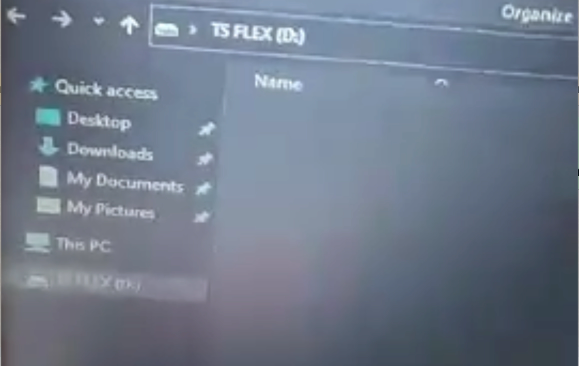
- If using a PC....
- If there are files , simply delete the files from the USB and then safely eject the USB.
- (USB folder should have no files like the below photo)
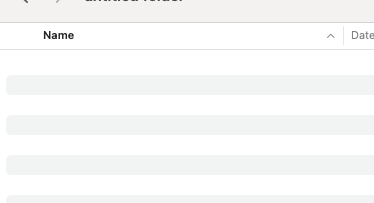
- If using a Apple Asset Device...
- If there are files , simply 'right click the file' and select 'move to trash'.
- Then go to your Apple Trash bin and Empty out the trash bin.
- Then safely eject the USB
- (USB folder should have no files like the below photo)
Step 2| Connection of Cutera USB
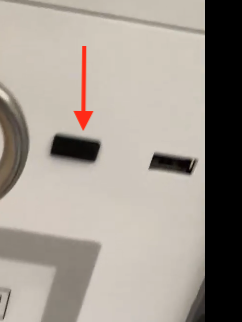
While machine is powered down, insert the Cutera USB to the back of the machine’s LEFT port. (UPDATED NOTE: Updated models only have one USB slot.)
(photo below)
Step 3 | Power Up Machine
Ensure the main power switch on the back of the machine is ON, then front the front of the machine you can turn the key to boot up the machine.
Step 4 | Download the Device Files
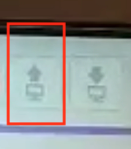
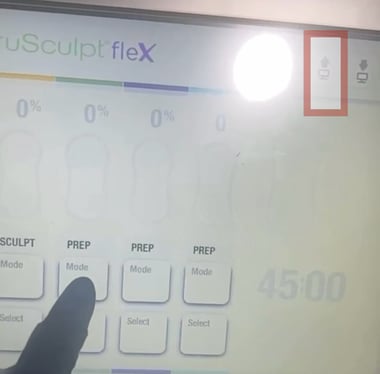
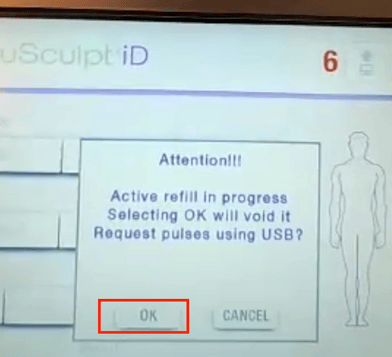
On the top right-hand corner, select the UP arrow and accept the prompts.
Step 5 | Email the file on the USB to: Contact@mnmlaesthetics.com
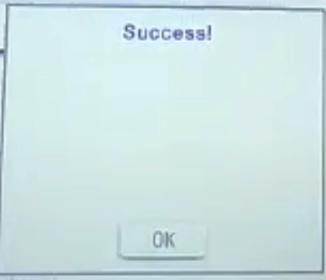
- Once you get the ‘Success’ prompt, you can power-down the machine and disconnect the USB off the machine.
- Connect the USB to your laptop computer, check the USB folder to ensure the following file is in visible called:
- truSculpt iD file name: CTS2_CUO.bin
- truSculpt flex file name: FlexUpload.bin
- Then email CTS2_CUO.bin -OR- FlexUpload.bin to a MNML Representative and we'll push this to our tech team to begin the cycle refill process.
PART B.
Download Device Files from Cycle Bank
When the file has been refilled with cycles, a MNML representative will email you the files.
The refill cycle File names are as follows:
- truSculpt iD file name: CTS2_CUI.bin
- truSculpt flex file name: FlexDownload.bin
WARNING: These file name must not be changed and must be transferred to the USB thumb drive with the exact name and no other elements attached to the name such as []/\. The file name must remain:
- truSculpt iD file name: CTS2_CUI.bin
- truSculpt flex file name: FlexDownload.bin
WARNING 2: Be advised, ONLY refill your Cutera Trusculpt iD or Flex Device with the new cycles, when the machine has reached ‘0-cycles.' Otherwise, you risk losing cycles that may still be on the machine.
PRO TIP : Note the USB thumb drive still has the 'upload' files. You can keep the files on the USB as follows:
- truSculpt iD file name: CTS2_CUO.bin & CTS2_CUI.bin
- truSculpt flex file name: FlexUpload.bin & FlexDownload.bin
- Connect the Cutera USB thumb drive to your desktop or laptop. Then Transfer the refill file the MNML representative emails you.
- Disconnect the USB Drive from your computer.
- Connect the USB to the ‘Left-hand’ side USB port of the machine, turn On the machine, and then tap the Down Arrow button on the top right screen so the machine will refill with the new cycle count.
- The system will check for the files on the USB and you will then see “Success!” with more pulses added to your system.
- Disconnect the USB from your Cutera Device and connect it back to your computer and delete all files from the USB and your downloads folder.